You’re reviewing a student submission on your phone during your morning commute, or perhaps you’re a content manager checking freelance work from your tablet at a coffee shop. The reality of 2026 is that we work everywhere, and waiting until you’re at a desktop to verify content authenticity simply isn’t practical anymore. Mobile AI detection has become essential, yet many people struggle with clunky interfaces designed for desktop-first experiences.
Fortunately, modern AI detection tools have evolved to meet you where you are. This guide walks you through using AI Text Scanner specifically from your mobile device, ensuring you can authenticate content anywhere, anytime, without compromising accuracy or speed.
Why Mobile AI Detection Matters in 2026
The shift toward mobile-first workflows isn’t just a trend—it’s a fundamental change in how professionals operate. According to recent data, over 67% of content reviews now happen on mobile devices, yet traditional AI detection tools were built for desktop screens with complex navigation that frustrates mobile users.
Mobile AI detection offers several compelling advantages. First, you gain immediate verification capabilities without device restrictions. Second, you can respond to urgent content authenticity questions in real-time. Third, mobile scanning integrates seamlessly into modern collaborative workflows where team members work across different locations and time zones.
Preparing Your Mobile Device for AI Detection
Before diving into the scanning process, ensure your mobile setup is optimized for the best experience. Start by updating your mobile browser to the latest version—whether you’re using Safari on iOS or Chrome on Android. Modern browsers provide better rendering and faster processing speeds.
Next, ensure you have a stable internet connection. While AI Text Scanner works on both WiFi and cellular data, a consistent connection prevents interruptions during analysis. For frequent users, consider bookmarking the scanner directly to your home screen for instant access.
Additionally, adjust your screen brightness and enable landscape mode for longer texts. These simple adjustments significantly improve readability when reviewing detection results on smaller screens.
Step-by-Step: Scanning Text on Your Smartphone
Now let’s walk through the actual scanning process, optimized specifically for mobile devices. This method works whether you’re using an iPhone, Android phone, or tablet.
Step 1: Navigate to AI Text Scanner
Open your mobile browser and visit AI Text Scanner. The mobile-optimized interface immediately adapts to your screen size, presenting a clean, touch-friendly layout without unnecessary clutter. You’ll notice the text input area takes up most of the screen—this intentional design prioritizes your primary task.
Step 2: Input Your Content
You have multiple options for adding text on mobile devices. You can manually type or paste content directly into the text box. For longer documents, use the copy-paste function from other apps like email clients, messaging apps, or document viewers. Simply long-press to select text, choose copy, then return to AI Text Scanner and paste.
Alternatively, if you’re reviewing a physical document, use your phone’s speech-to-text feature to dictate the content. While this takes slightly longer, it’s invaluable when you need to verify printed materials on the spot.
Step 3: Initiate the Scan
Once your text is in place, tap the prominent scan button. The mobile interface provides clear visual feedback—a progress indicator shows the analysis is underway. Unlike desktop experiences where you might multitask, the mobile interface keeps you focused on the current scan.
The analysis typically completes within seconds, even on mobile connections. The processing happens server-side, meaning your device’s capabilities don’t limit scanning speed or accuracy.
Step 4: Review Your Results
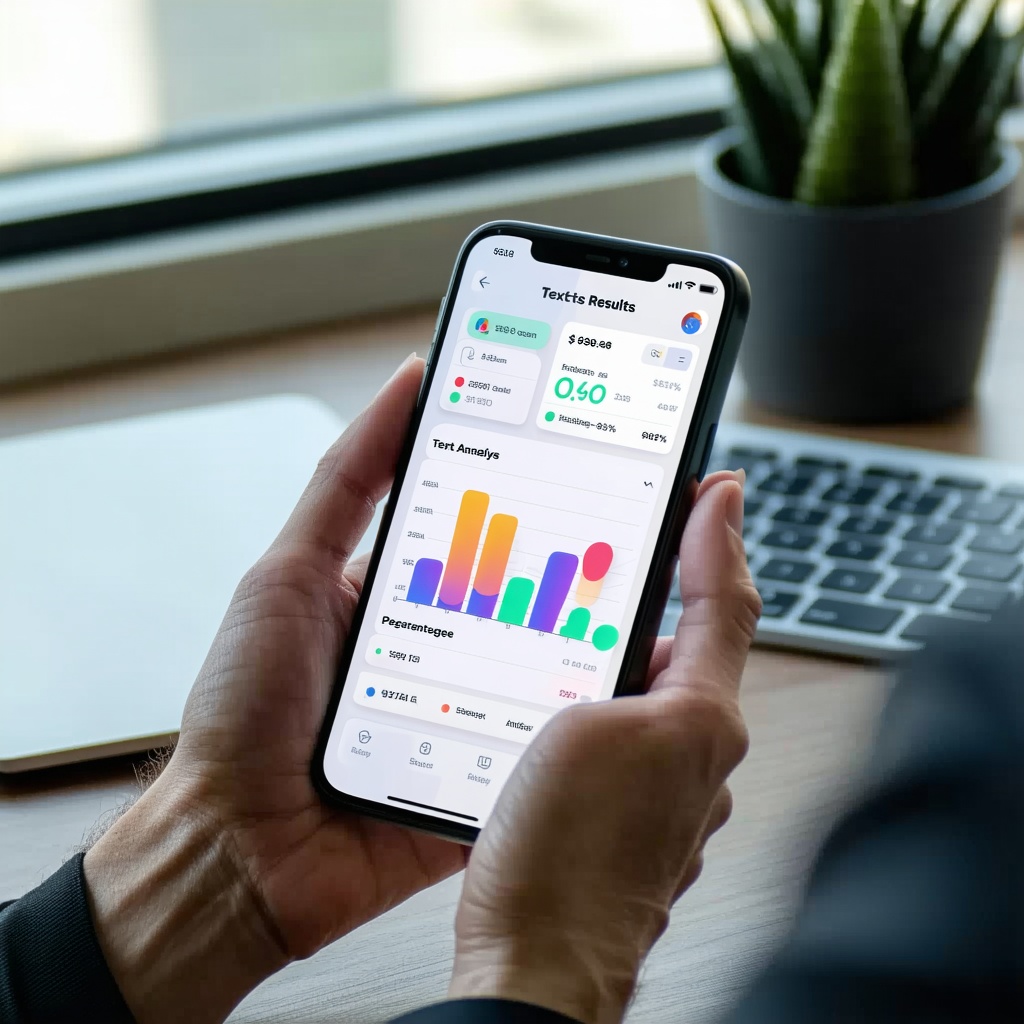
Results display in a mobile-optimized format with large, readable text and touch-friendly elements. The detection score appears prominently at the top, followed by a detailed breakdown that you can expand or collapse with simple taps.
Swipe through different sections of the analysis to review sentence-level insights. The mobile interface highlights potentially AI-generated sections with color coding that remains visible even in bright sunlight or varied lighting conditions.
Mobile Features That Enhance Your Detection Experience
AI Text Scanner includes several mobile-specific features that desktop users don’t access. The touch-optimized interface allows you to pinch-to-zoom on detailed analysis sections, making it easier to focus on specific passages without losing context.
The share functionality integrates directly with your mobile ecosystem. After completing a scan, tap the share icon to send results via email, messaging apps, or cloud storage—all without leaving the detection interface. This seamless integration saves valuable time when collaborating with colleagues or providing feedback to content creators.
Another powerful mobile feature is the automatic session saving. If you switch apps or receive a call mid-scan, your work isn’t lost. Return to the browser, and your previous scan results remain accessible for continued review.
Comparing Mobile vs Desktop Detection Capabilities
| Feature | Mobile Experience | Desktop Experience |
|---|---|---|
| Interface Design | Touch-optimized, vertical scrolling | Mouse-driven, horizontal layout |
| Detection Accuracy | Identical algorithms, same precision | Identical algorithms, same precision |
| Processing Speed | 2-5 seconds average | 2-4 seconds average |
| Text Input Methods | Paste, type, voice-to-text | Paste, type, file upload |
| Results Sharing | Native mobile sharing options | Download or email |
| Multi-tasking | App switching with session save | Multiple tabs and windows |
Optimizing Your Mobile Workflow for Batch Scanning
When you need to verify multiple pieces of content from your mobile device, efficiency becomes crucial. Develop a systematic approach by organizing texts before you begin. Copy all content pieces into a notes app, then scan them sequentially without switching between multiple apps repeatedly.
For recurring verification tasks, create a dedicated folder on your mobile device where you temporarily store content awaiting authentication. This organizational method reduces cognitive load and streamlines your mobile detection workflow.
Consider setting specific times for mobile batch scanning—perhaps during commutes or breaks. This focused approach prevents constant context-switching and helps you process verification requests more efficiently than ad-hoc checking throughout the day.
Troubleshooting Common Mobile Detection Issues
Occasionally, mobile users encounter specific challenges that rarely affect desktop experiences. If your scan seems to hang, first check your internet connection stability. Mobile networks sometimes experience brief interruptions that pause processing.
When results appear difficult to read, rotate your device to landscape orientation for wider text display. Additionally, ensure your browser isn’t in reader mode or content-blocking mode, which can interfere with the detection interface.
If copied text doesn’t paste correctly, the source formatting might include hidden characters. Try pasting into a plain-text notes app first, then copy again and paste into AI Text Scanner. This intermediate step strips problematic formatting while preserving the actual content.
Security and Privacy on Mobile Devices
Mobile detection naturally raises privacy questions since smartphones contain sensitive personal and professional information. AI Text Scanner employs the same encryption standards on mobile as desktop, with all text transmissions secured through HTTPS protocols.
Your scanned content isn’t stored permanently on servers. After analysis completes, the text is removed, ensuring confidential documents remain protected. This approach is particularly important for mobile users who might scan sensitive materials in public spaces.
For added security, avoid using public WiFi networks when scanning confidential content. Instead, rely on your cellular data connection, which provides better security against potential interception. Modern mobile carriers offer robust encryption that protects your data transmission.
Advanced Mobile Detection Techniques
Once you’ve mastered basic mobile scanning, several advanced techniques can enhance your verification capabilities. Use your phone’s split-screen feature to view the original document alongside detection results simultaneously. This parallel comparison helps you quickly identify specific sections requiring closer examination.
Leverage mobile shortcuts and automation tools available on iOS and Android. Create custom shortcuts that open AI Text Scanner directly from your share menu, allowing you to scan content from any app with one tap. This integration transforms content verification into a native-feeling mobile experience.
For users managing high volumes of content, consider establishing a mobile-first verification protocol where initial scans happen on mobile devices, with detailed analysis reserved for desktop follow-up only when necessary. This tiered approach maximizes efficiency without sacrificing thoroughness.
Best Practices for Mobile AI Detection
Successful mobile detection relies on following several best practices that accommodate smaller screens and touch interfaces. Always review the full detection report rather than relying solely on the top-level score. Mobile interfaces can tempt users to skim, but comprehensive analysis requires reading detailed breakdowns.
Maintain awareness of your surroundings when scanning sensitive content in public spaces. Privacy screens for mobile devices add an extra layer of security when reviewing detection results on trains, in cafes, or other shared environments.
Regularly clear your mobile browser cache and cookies to ensure optimal performance. While AI Text Scanner doesn’t store your scans, cached data can occasionally interfere with the most current version of the mobile interface.
Integrating Mobile Detection Into Your Daily Routine
The true power of mobile AI detection emerges when you integrate it seamlessly into existing workflows. For educators, scan student submissions immediately upon receipt via email—no need to wait until you’re at your desk. Content managers can verify freelancer work during review cycles without interrupting their mobile-first approval processes.
Set up notifications and reminders that prompt regular content verification checks. This proactive approach prevents backlogs and ensures timely feedback to content creators. Mobile detection transforms from a reactive tool into a preventive quality control measure.
Consider the broader implications for your organization’s content authenticity protocols. When mobile detection becomes standard practice, response times decrease dramatically, and verification becomes a natural part of content receipt rather than a separate administrative task.
Future-Proofing Your Mobile Detection Strategy
As AI technology continues evolving rapidly, staying current with detection capabilities matters more than ever. Mobile-first detection positions you advantageously because mobile interfaces typically adopt new features faster than desktop versions, which often carry legacy design constraints.
Watch for emerging mobile technologies that will enhance detection experiences. Features like on-device AI processing, improved voice interfaces, and augmented reality content verification are already in development. Early adoption of mobile detection practices prepares you for these innovations.
Ultimately, mobile AI detection represents not just a convenience but a fundamental shift in how we maintain content authenticity standards. By mastering these mobile-first techniques today, you position yourself and your organization at the forefront of content verification practices. Whether you’re verifying academic submissions, marketing copy, or journalistic content, AI Text Scanner provides the mobile-optimized tools you need to maintain integrity standards anywhere your work takes you.
Frequently Asked Questions
Can mobile AI detection match desktop accuracy?
Yes, mobile AI detection delivers identical accuracy to desktop scanning. The analysis algorithms run server-side, meaning your device type doesn’t affect detection precision. Mobile interfaces simply present the same results in a touch-optimized format designed for smaller screens, ensuring you receive comprehensive insights regardless of how you access the tool.
How much data does mobile AI scanning consume?
A typical AI content scan uses approximately 1-3 MB of data, depending on text length and result complexity. This minimal consumption means you can perform dozens of scans on a standard mobile data plan without significant impact. For heavy users, WiFi connectivity offers unlimited scanning without data concerns.
Does AI Text Scanner work offline on mobile devices?
No, AI Text Scanner requires an active internet connection to perform analysis since processing occurs on secure servers rather than locally on your device. This server-side approach ensures consistent accuracy and protects the sophisticated detection algorithms while keeping the mobile app lightweight and fast-loading across all devices.
Can I save scan results on my mobile device?
Yes, you can save results through multiple methods on mobile devices. Use the native share function to export results to notes apps, email them to yourself, or save to cloud storage services. Screenshots also capture results for quick reference, though exporting provides more detailed information for thorough documentation.
Which mobile browsers work best with AI Text Scanner?
AI Text Scanner works seamlessly with all modern mobile browsers including Safari, Chrome, Firefox, and Edge. For optimal performance, ensure your browser is updated to the latest version. Chrome and Safari typically provide the smoothest experience due to their widespread optimization for mobile web applications.